
Once a portal is out, you don't have to chase every client by hand. When a client still has documents outstanding, BrokerPlus emails them a reminder on a schedule you set. Each reminder is a single email listing everything they still need to upload, with a link straight back to their portal.
What The Reminders Do
- One consolidated email per client, listing only the items still outstanding.
- A reminder goes out on a given day only if there are still documents missing on that day. A client who already finished gets nothing.
- Co-applicants are handled separately. Each applicant gets their own list of outstanding items and their own link.
Turning Reminders On Or Off
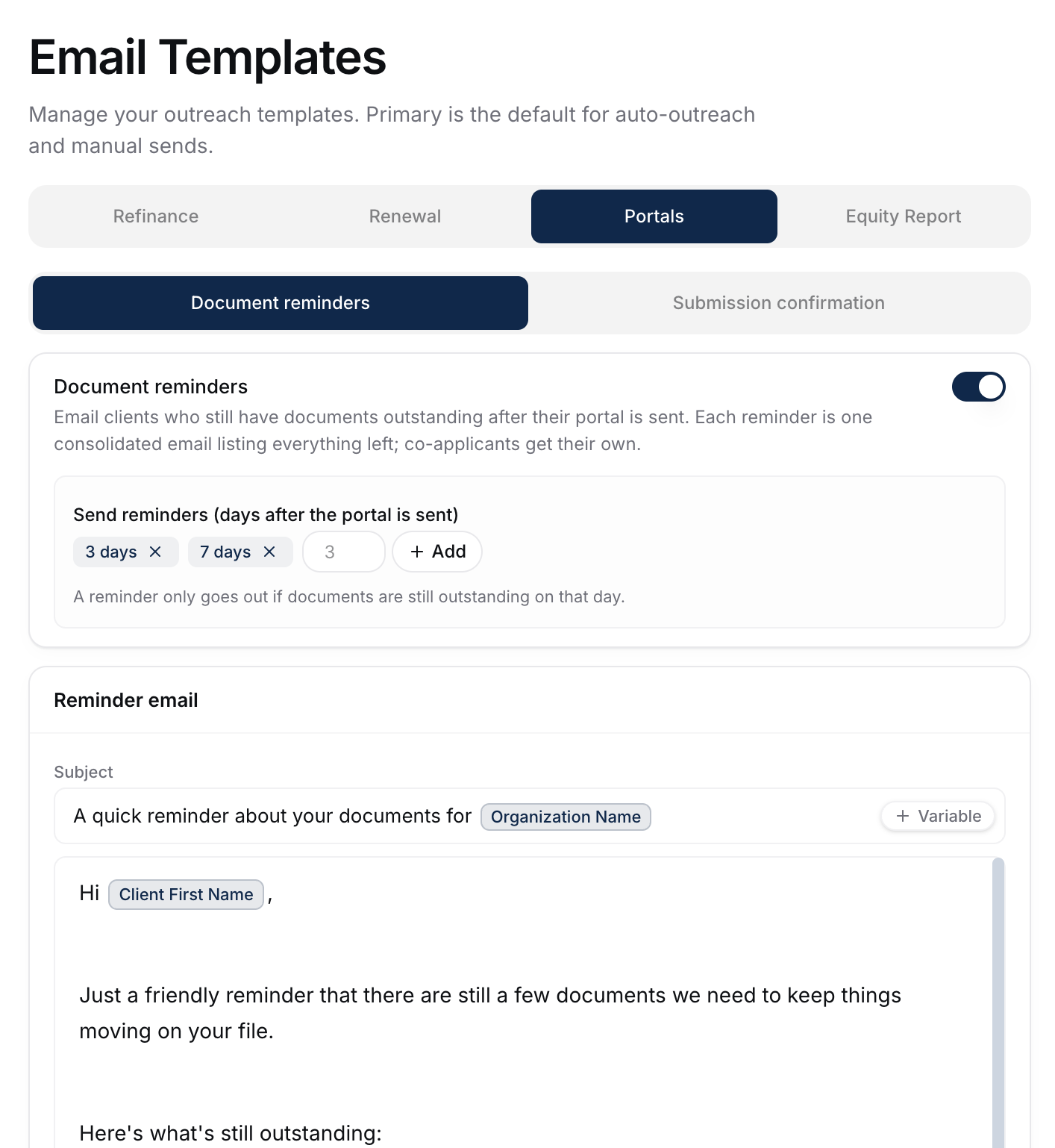
Go to Settings, then Email Templates, then the Portals tab. The Document reminders toggle at the top turns the whole reminder flow on or off. It's on by default.
Setting The Schedule
With reminders on, you'll see day chips under Send reminders (days after the portal is sent). Each chip is one reminder, counted from when the portal was sent.
- The default schedule sends a reminder 3 days and 7 days after the portal goes out.
- Remove a day by clicking the x on its chip.
- Add a day by typing the number and clicking Add. You can schedule up to twelve reminders, each between 1 and 90 days out.
Changes save as you make them.
Editing The Reminder Email
Below the schedule is the Reminder email editor, pre-loaded with a ready-to-send message. Edit the subject and body to match your voice, then save. You can reset back to the default copy at any time.
You can also keep more than one version. Use the picker above the editor to add a new template, rename it, or duplicate one, then mark whichever you want to send as Active. Reminders always go out from the Active template.
Everyone starts with their own personal copy under the Your Templates view, so your edits stay yours. To hand your version to the rest of the brokerage, open the three-dots (⋮) menu on the template card and choose Share with team. That copies it into the Shared Templates set while your personal copy stays put. The Shared Templates view and the Share with team option only appear when at least two people on your team have email sending permissions.
The template supports these merge variables, which fill in automatically when the email is sent:
- Client name - the client's name.
- Broker name - your name.
- Pending documents - the list of items the client still owes.
- Portal link - the client's secure portal link.
- Organization name - your brokerage or business name.
What To Do Next
- See every portal's progress at a glance: Tracking Portal Status.
- Review what a client has uploaded: Working A Portal Submission.