
The session board on the Client Portals page is your team's operational view of every portal in flight. One card per session, organized by status.
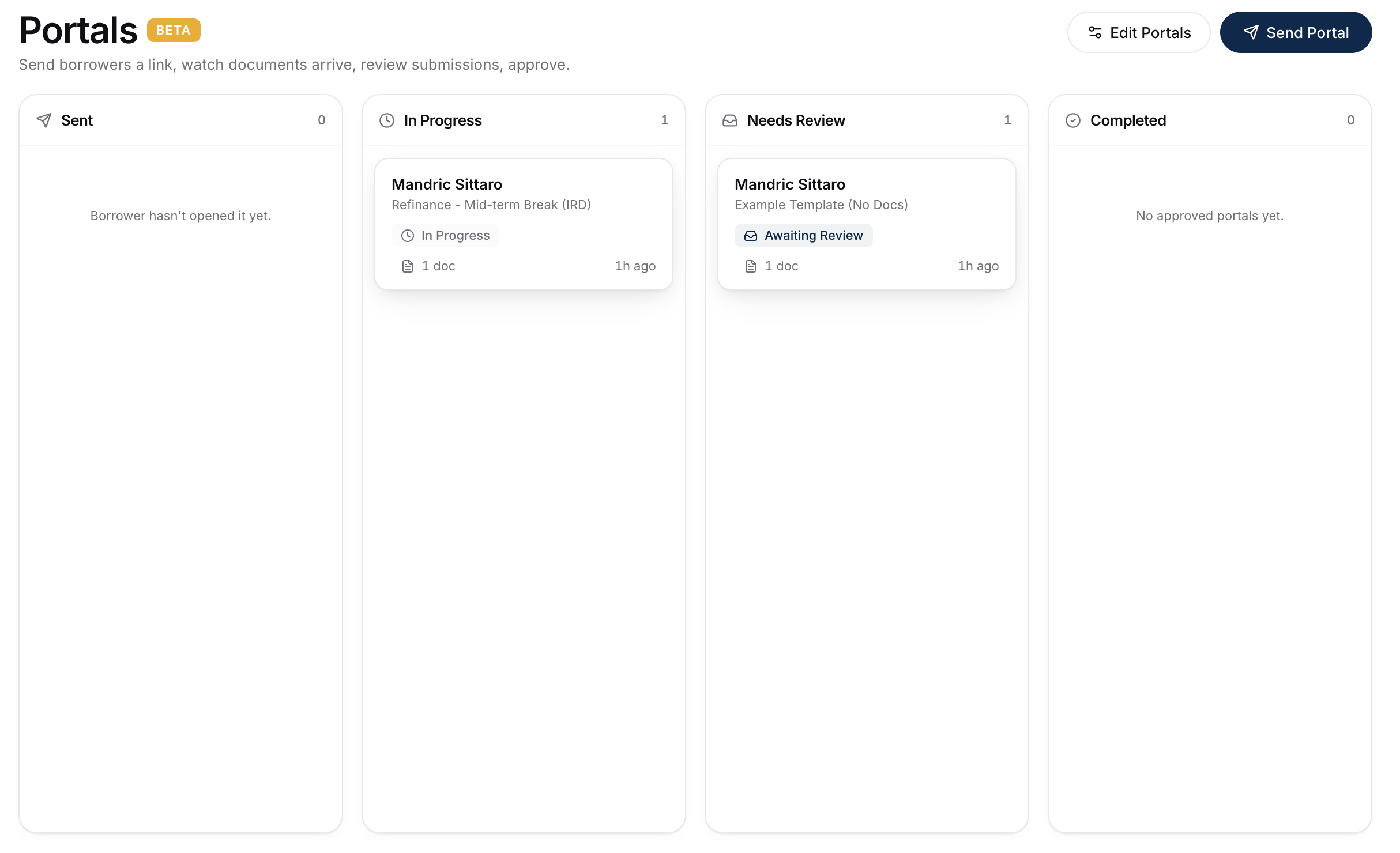
Where The Session Board Lives
Click Client Portals in the sidebar. The board opens by default.
Whose Portals You See
The board is shared across your whole account. Every teammate sees the same portals, no matter who sent them, so anyone can pick up a session when a colleague is out or when an assistant is working on a broker's behalf. Teammates with full access can act on any portal - approve, request changes, or edit an active session. Teammates with view-only access see everything but can't make changes; their actions are blocked.
Statuses You'll See
Sessions cycle through a series of statuses:
- Sent - portal link is out, borrower hasn't opened it yet.
- In Progress - borrower has opened and started filling in fields or uploading.
- Submitted - borrower marked their submission as done.
- Under Review - you've opened the submission and started reviewing.
- Changes Requested - you've sent it back for fixes.
- Approved - submission is approved and the session is wrapped.
The board groups sessions by status so you can see what needs your attention.
What Each Card Shows
- Client name.
- Current status.
- When it was sent.
- When the borrower last touched it.
- How many docs / fields are complete vs outstanding.
- A quick action to open the full session detail.
Filtering And Searching
- Search by client name.
- Filter by status to focus on, e.g., everything in Submitted that needs your review.
- Sort by last activity or by send date.
Opening A Session
Click any card to open the full session detail view. From there you can preview submitted docs, approve, request changes, request more info, or switch into Broker Fill Mode. See Working A Portal Submission.
A Useful Daily Rhythm
- Open the session board first thing.
- Filter to Submitted - that's your review queue.
- Process those in order.
- Filter to Sent with no activity in 3+ days - those clients may need a nudge.
Automatic Document Reminders
You don't have to chase every client by hand. When a portal still has documents outstanding, BrokerPlus sends the client a reminder on a schedule you set, with one email listing everything they still need to upload. Co-applicants each get their own list and their own link.
Turn it on and set the timing under Settings then Email Templates then the Portals tab. The default sends a reminder 3 days and 7 days after the portal goes out, and you can add or remove days. You can also edit the reminder copy there. A reminder only goes out if there are still documents outstanding on that day.
Automatic Submission Confirmations
When a client submits their portal, BrokerPlus emails them a quick note confirming you've received their info and documents. Each applicant gets their own when they submit, addressed by name and sent from your connected mailbox. The default copy confirms receipt only, not that you have everything you need, since you may still come back with questions.
It's on by default. Toggle it off or edit the copy under Settings then Email Templates then the Portals tab, on the Confirmation sub-tab (the reminder settings live on the Document reminders sub-tab next to it).
What To Do Next
- Work the submissions in your review queue: Working A Portal Submission.
- Need to send another portal? Sending A Portal.