
BrokerPlus isn't only for you. You can bring your underwriters, assistants, and anyone else who touches your deals into the same workspace, so everyone is looking at the same book instead of forwarding files back and forth.
When You'd Use This
Most brokers start solo and add people as the work grows. If you have an assistant who chases documents, an underwriter who reviews files, or a partner who runs outreach, give them their own login rather than sharing yours. They get their own access, you keep control of what they can do, and you can change or remove it at any time.
No per-seat charge for solo brokers. Most platforms bill you for every login you add. On a solo plan, BrokerPlus doesn't, so add the people who help you run your deals and your bill stays the same. Brokerages on a per-seat plan are different: each teammate counts as a seat (see Inviting Teammates To Your Brokerage).
Adding A Teammate
Head to Settings > Team and send the invite.
- Go to Settings > Team.
- Click Invite.
- Enter the teammate's email.
- Pick an access level (see below).
- Click Send invite.
They get an email with a link. They click it, set their full name and a password, and they're in your workspace with the access you chose.
You'll also see an Add your team step in the guided setup right after your first payment - it's the same invite form with the same access options, so you can bring your assistant or underwriter in before you've even opened Settings.
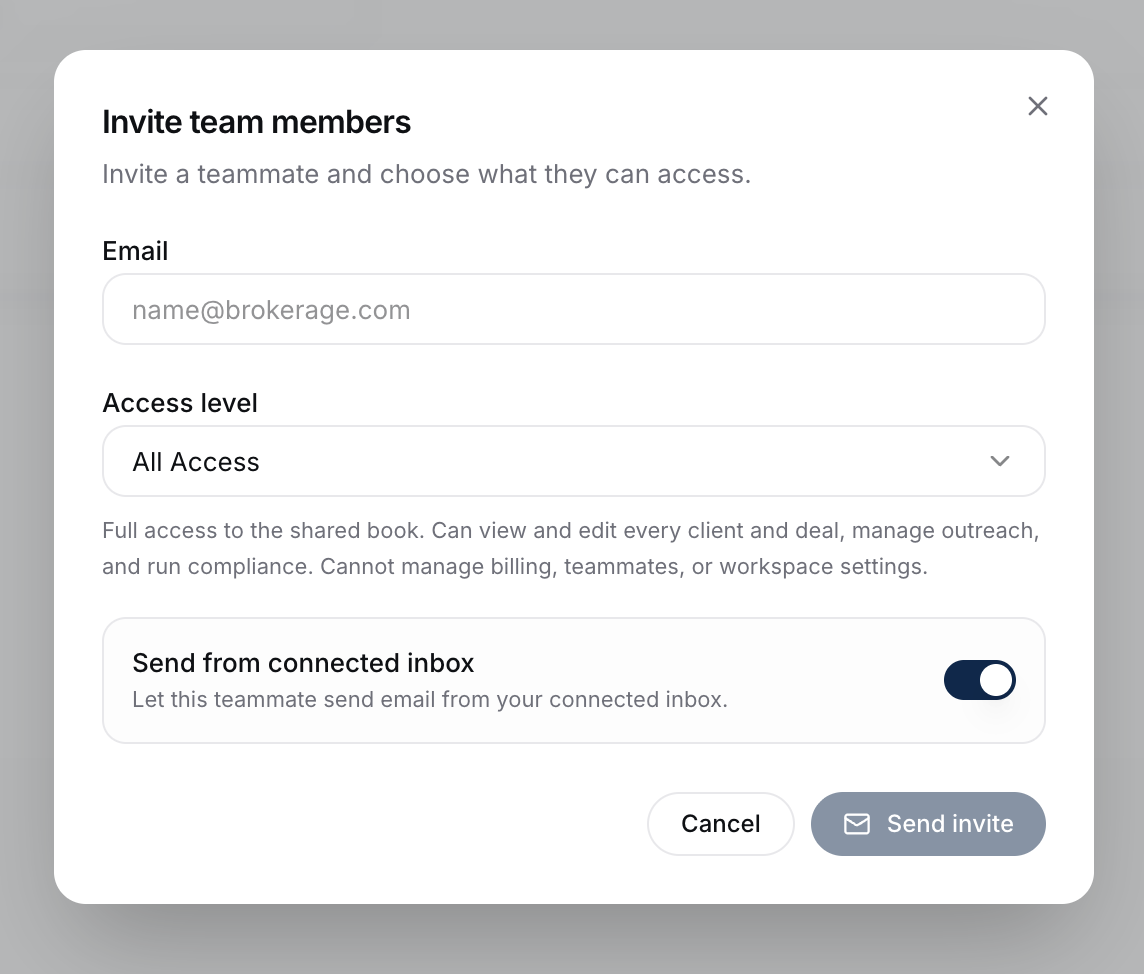
Choosing What They Can See
You decide how much each teammate can do when you invite them, and you can change it later from their row on the Team page.
| Access level | What they can do |
|---|---|
| View only | See the book, deals, and reports. Can't edit anything, send email, or run outreach. |
| All Access | See the book and act on it - send messages, generate reports, and run outreach right alongside you. |
Use View only for someone who needs visibility but shouldn't change anything, like a manager keeping an eye on the pipeline. Use All Access for the people doing the work with you.
By default everything a teammate sends goes out from your inbox, name, and branding, so it all looks like it came from you. If you'd rather a teammate send as themselves, turn on Can send with their own email & branding on their row. Once they connect their own inbox under Settings > My Sending Inbox they can flip a Send from my email switch and their outreach, reports, and emails go out from their own address, name, and signature. See Connecting Your Email.
Your teammates can also help finish your setup. Anyone who isn't View only can edit your broker profile - your headshot, name and title, booking link, brand colors, and signature - from their own Settings, so an assistant can get you set up without needing your login.
What To Watch Out For
- Invites expire after 7 days. If a teammate doesn't accept in time, resend it from the Team page.
- Only the owner can invite. On a solo plan that's you. Inside a brokerage, that's the principal broker or an admin.
- Pending invites show on the Team page until accepted. You can resend or cancel them there.
What To Do Next
- Running a brokerage with seats and agent books? Inviting Teammates To Your Brokerage.
- See exactly what each role can access: What Your Agents See Vs What You See.
- Make sure your teammates can send from the right address: Connecting Your Email.