
The toolbar above the renewals table has four controls: a search box, a renewal-type select, a Sort select, and a Filters button that opens a panel with everything else.
The Toolbar
- Search - matches client name, email, lender, city, or postal code.
- All / Renewals / Pre-Renewals - switch the list between true renewals, pre-renewals, or both.
- Sort - Maturity (the default, most urgent first), Monthly Savings high or low, Total Savings high or low, Equity high or low, Engagement high or low (appears once your email is connected), and Name A-Z. Sorting lives here, not in the column headers.
- Filters - opens the filters panel. A count badge on the button shows how many filters are active, so you always know when the list is narrowed.
The Filters Panel
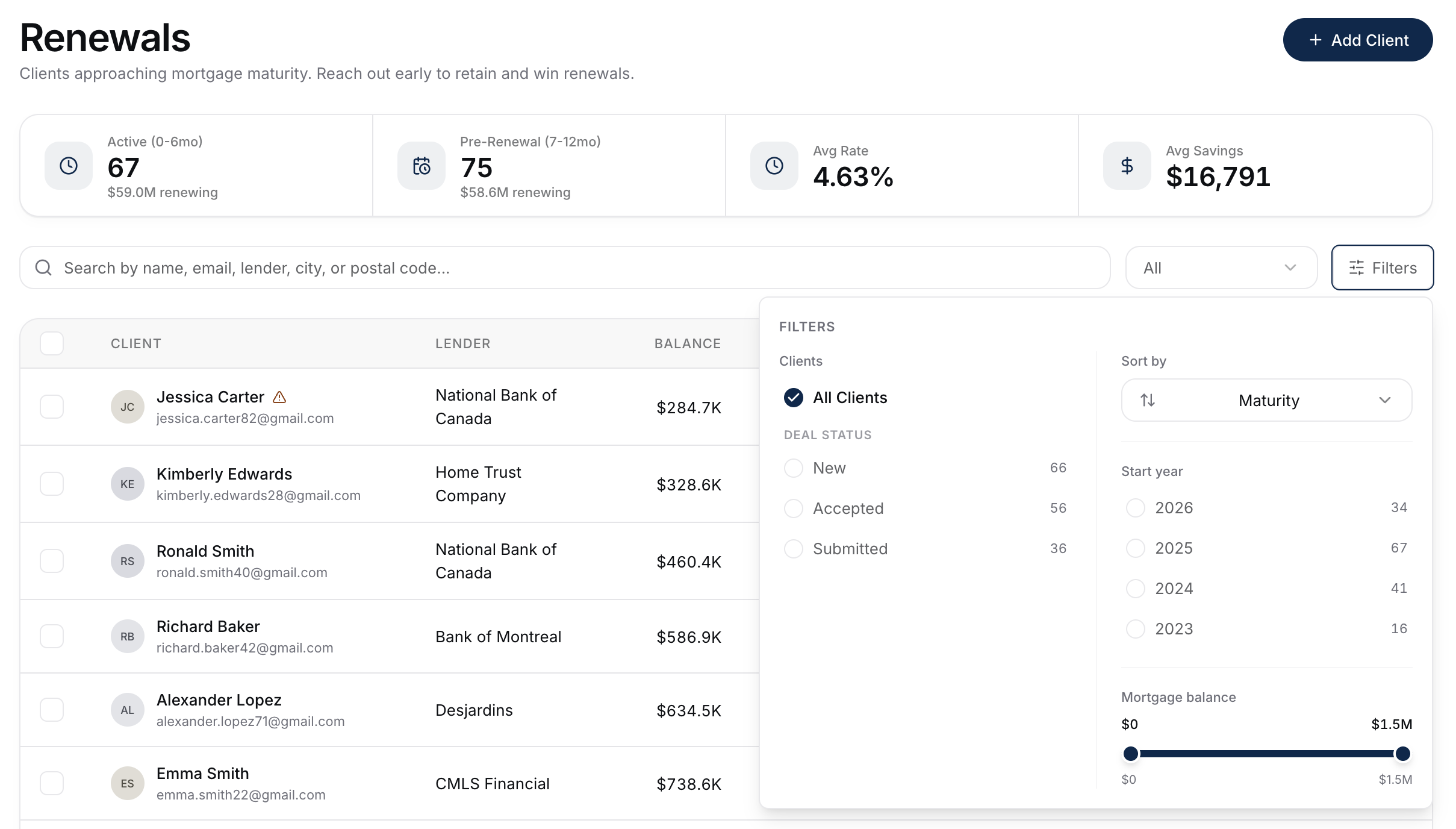
The panel has two columns.
Deal Status (left column) is a dropdown listing every status in your book - statuses from your import plus any set on clients you added by hand - each with a count of matching clients. It reads All statuses when nothing is ticked. Tick as many statuses as you like; clients matching any ticked status stay in the list, and the button shows how many are selected. Untick them (or hit Clear all) to go back to every status.
Below it sits Start Year - a checklist of the mortgage start years in your book, with counts. Handy for "show me my 2023 fundings". It only appears when your clients have start dates on file.
The right column holds:
- Lender Type - a checklist of the broker-facing lender categories: A-Lender, Alt / B-Lender, Private / MIC, Reverse Mortgage, and Unassigned. The type comes from the client's current lender (the one in the Lender column), so ticking Alt / B-Lender narrows the list to just your B business. Clients whose lender is missing or unrecognized fall under Unassigned rather than dropping off the list.
- Additional Options → Only Linked Deals - narrows the list to clients who hold more than one deal with you, such as a second mortgage or another property. Linked deals are matched on the client's email address, and the match looks across your whole book rather than just this page, so a renewal whose only other deal is a refinance still appears here. Useful when you want to review everything a client has with you and update it all in one pass. Off by default.
- Mortgage Balance - a dual-handle range slider to match deal size.
Clear all in the panel header resets every filter back to defaults.
The counts beside deal statuses and start years are scoped to the renewals list and follow the All / Renewals / Pre-Renewals toggle - switch to Pre-Renewals and the counts update to match.
Useful Recipes
Work the biggest opportunities first:
- Set Sort to Monthly Savings (high).
- Work the top of the list.
Pre-empt renewals with personal outreach:
- Switch the toggle to Renewals.
- Set Sort to Engagement (high).
- Send personal renewal emails to your warmest clients first. Engagement scoring is explained in Filtering And Sorting The Refinance List.
Catch a specific lender's renewals coming up:
- Type the lender's name in the search box.
- Leave the sort on Maturity.
- Work the list.
Work one lender segment at a time (e.g. your B business):
- Open Filters and tick the lender types you want under Lender Type - for example Alt / B-Lender.
- Leave the sort on Maturity.
- Work that segment on its own, then clear the filter and move to the next.
Bulk Select And Delete
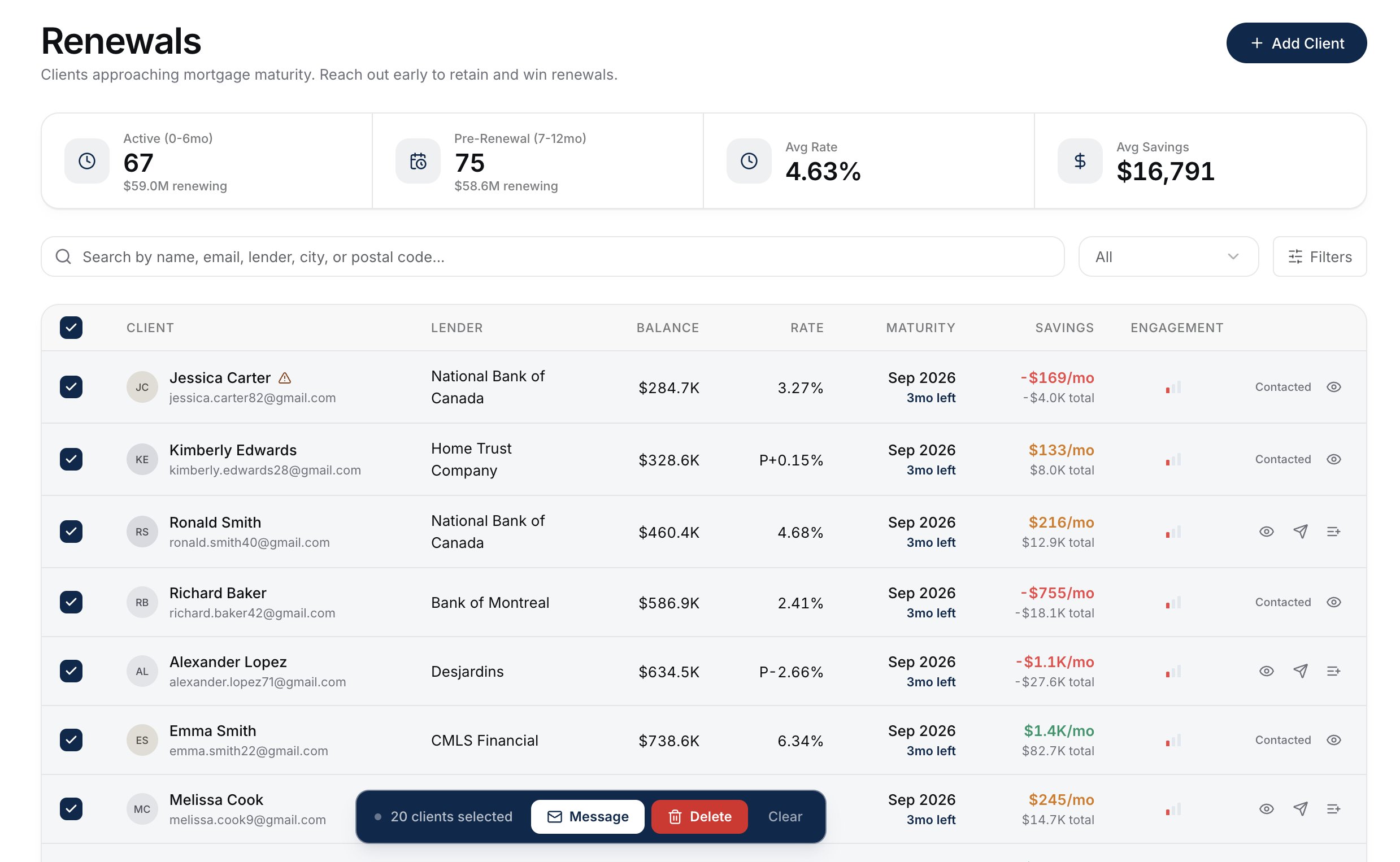
Each row has a checkbox, and the checkbox in the table header opens a small menu with two choices: Select this page, which ticks just the rows in front of you, and Select all, which selects every client matching your current filters - all pages, not just the one you're looking at. So you can filter the list down, choose Select all, and act on the whole filtered set at once. Choosing the checked option again clears the selection, and you can untick individual rows to leave specific clients out.
When anything is selected, a bar appears at the bottom of the screen showing the count, with Message, Delete, and Clear. Message opens the compose drawer for the whole selection so you can send one renewal email to everyone at once. Delete asks you to confirm, then permanently removes the selected clients - their profiles, reports, and outreach history. Clients with an open EDD case on file are kept (close the case first); everyone else in the selection is deleted.
What To Do Next
- See where engagement scoring is defined: Filtering And Sorting The Refinance List.
- Click into a row to see the full profile: Reviewing A Candidate.