
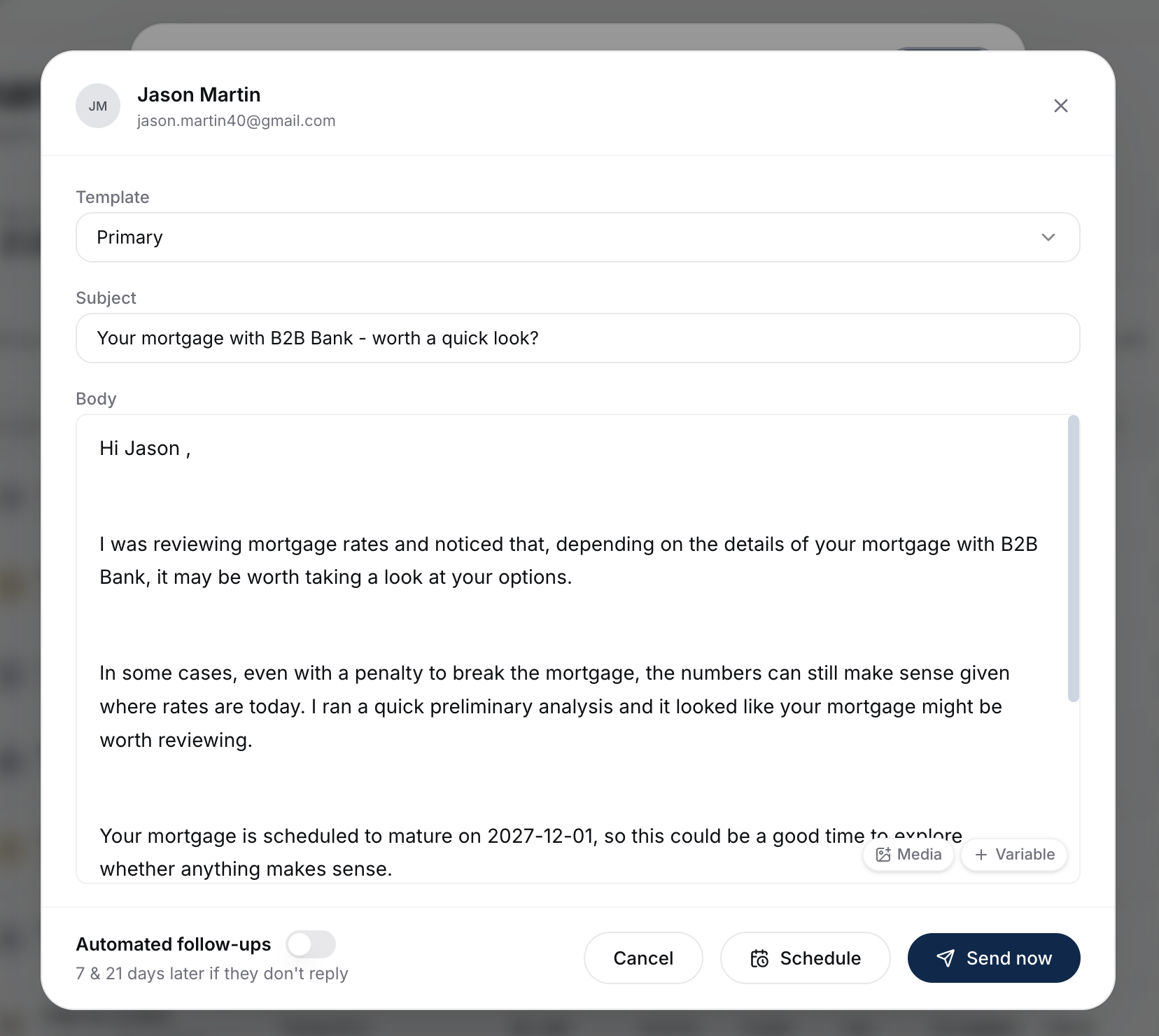
When you send a manual candidate report, you have two extra controls in the compose drawer: schedule for later and add automated follow-ups. Use them.
Scheduling A Send For Later
In the compose drawer, click the schedule icon next to the Send button. Pick a date and time.
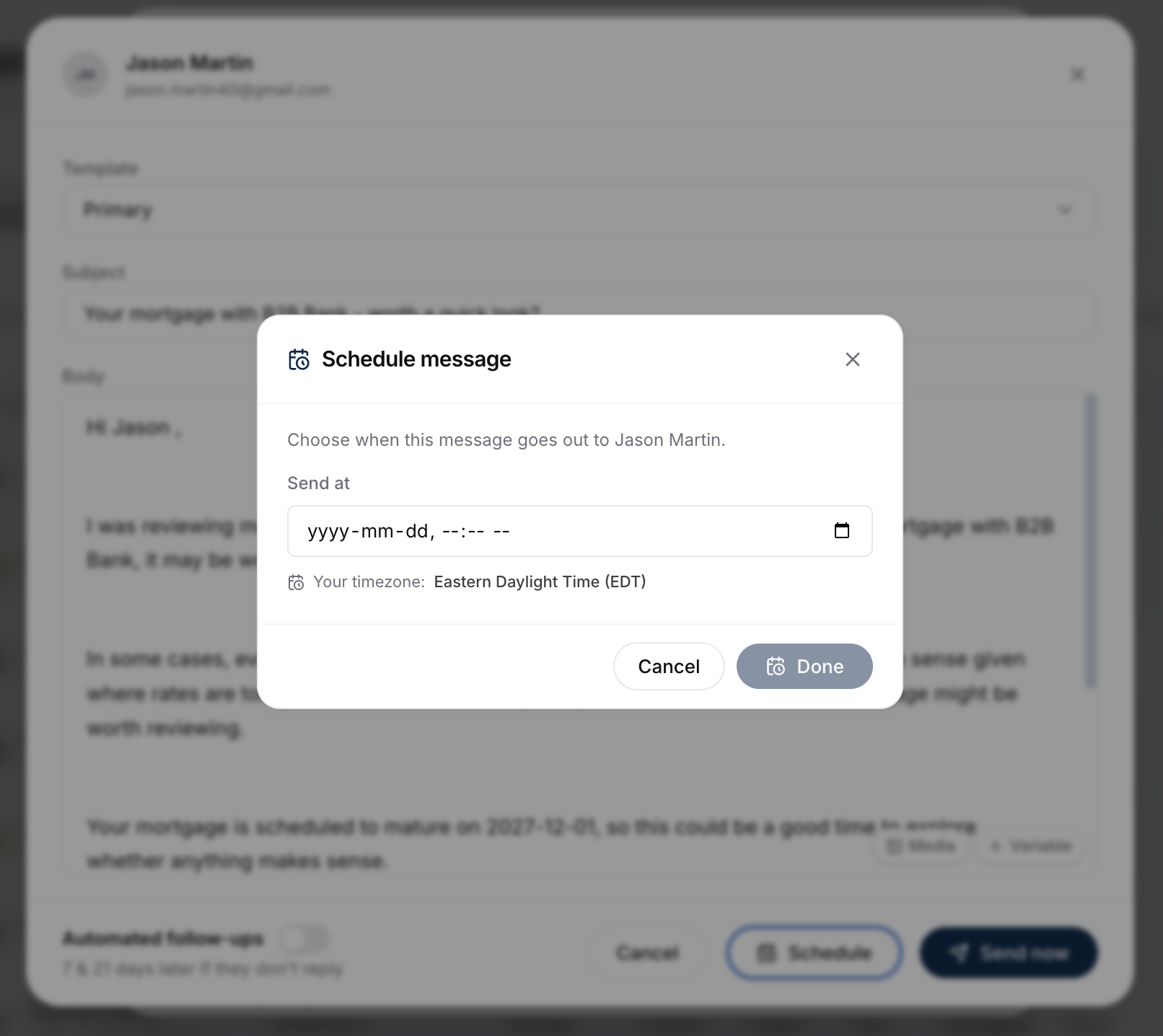
- The email queues up and goes out at the chosen time.
- The client lands in Contacted under the Scheduled stage until it sends.
- Once it sends, the stage moves to No Reply.
Use this when you want to time outreach for a Tuesday morning, after a Stat holiday, after a market move, etc.
Adding Automated Follow-Ups
Toggle Add automated follow-ups in the compose drawer before sending. Two follow-ups will be queued:
- Day 7 - sent 7 days after the initial if the client hasn't replied.
- Day 21 - sent 14 days after the day-7 follow-up if still no reply.
The follow-ups use the day-7 and day-21 follow-up templates you've configured in Settings > Templates. These are the same templates auto outreach uses, so if you've already tuned them for auto outreach, manual sends inherit your work.
When Follow-Ups Stop
They stop the moment the client replies - positive or negative. We detect the reply, classify the sentiment, move the client to Interested or Not Interested, and cancel any queued follow-ups.
You don't need to manually cancel anything.
Does This Apply To Renewals Too?
Yes. The same controls show up when you send a manual renewal email. See Sending A Renewal Email.
The renewal follow-up templates use the 12/7/3/1-month milestone templates (for auto outreach drip) rather than the day-7/day-21 cadence - but for a one-off manual renewal send with follow-ups toggled on, you'll use the day-7/day-21 cadence.
What To Do Next
- Review what the templates look like: Editing The IRD Email Template.
- See where scheduled sends show up: Contacted Stages Explained.