
A one-off renewal email is the manual equivalent of what the drip does - same templates, but you control timing and personalization.
Opening The Send Flow
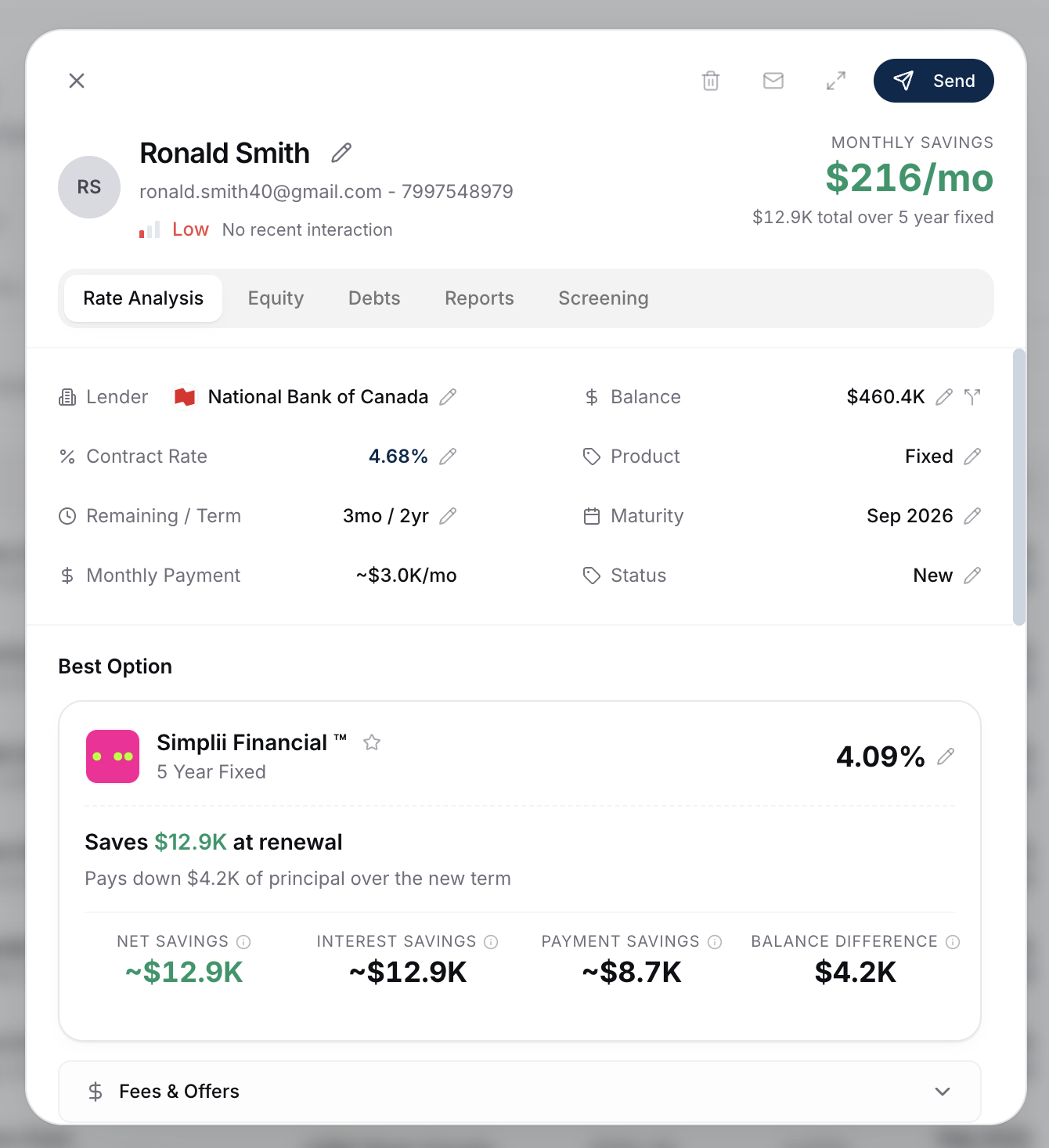
- On the Renewals page, click a client row to open their detail view.
- Click Send in the top-right.
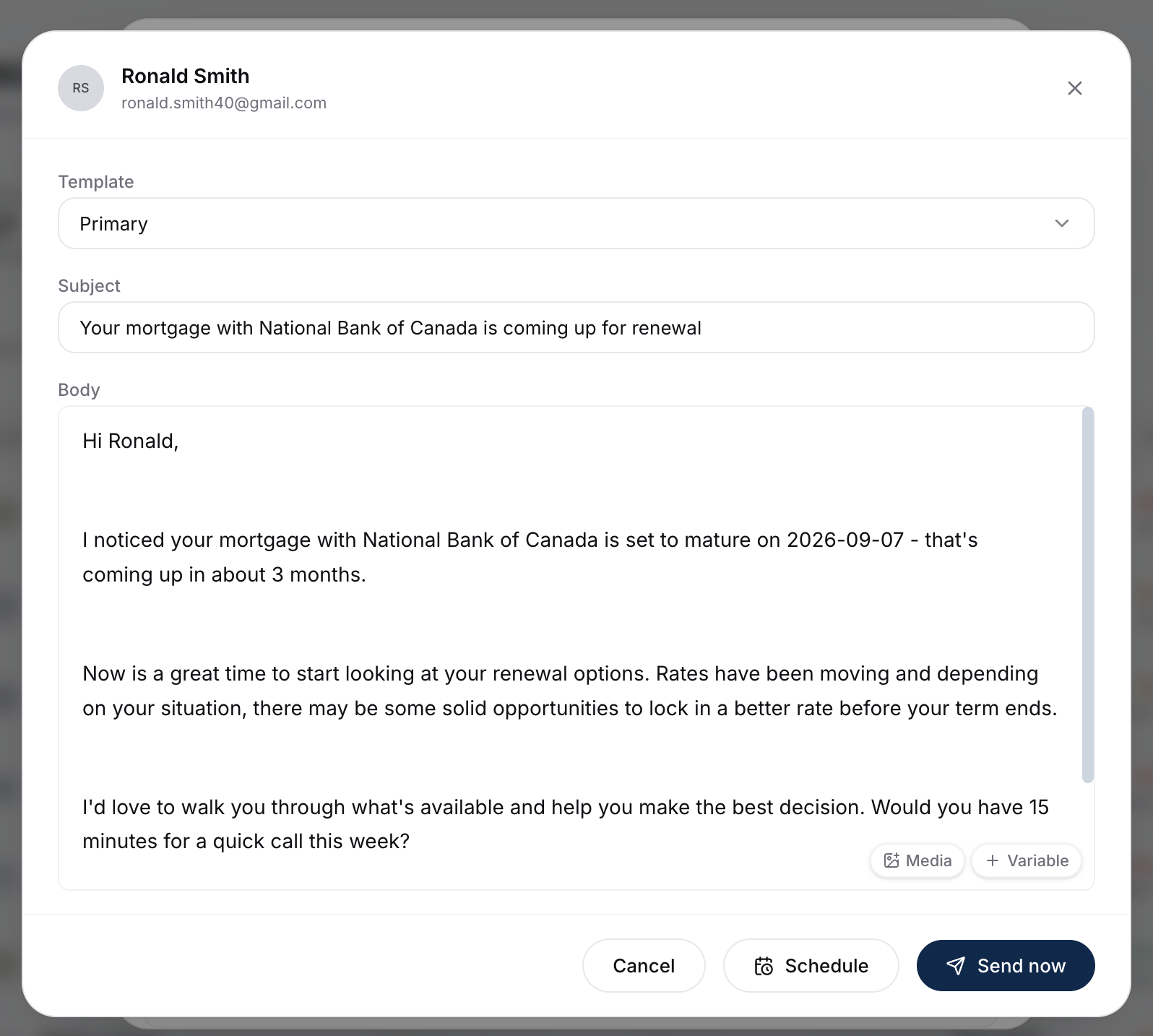
- The compose drawer opens with your Primary renewal template pre-filled.
Choosing A Template
If you've saved multiple variants of your Primary renewal template, pick the right one from the variant dropdown. See Editing The Renewal Email Templates.
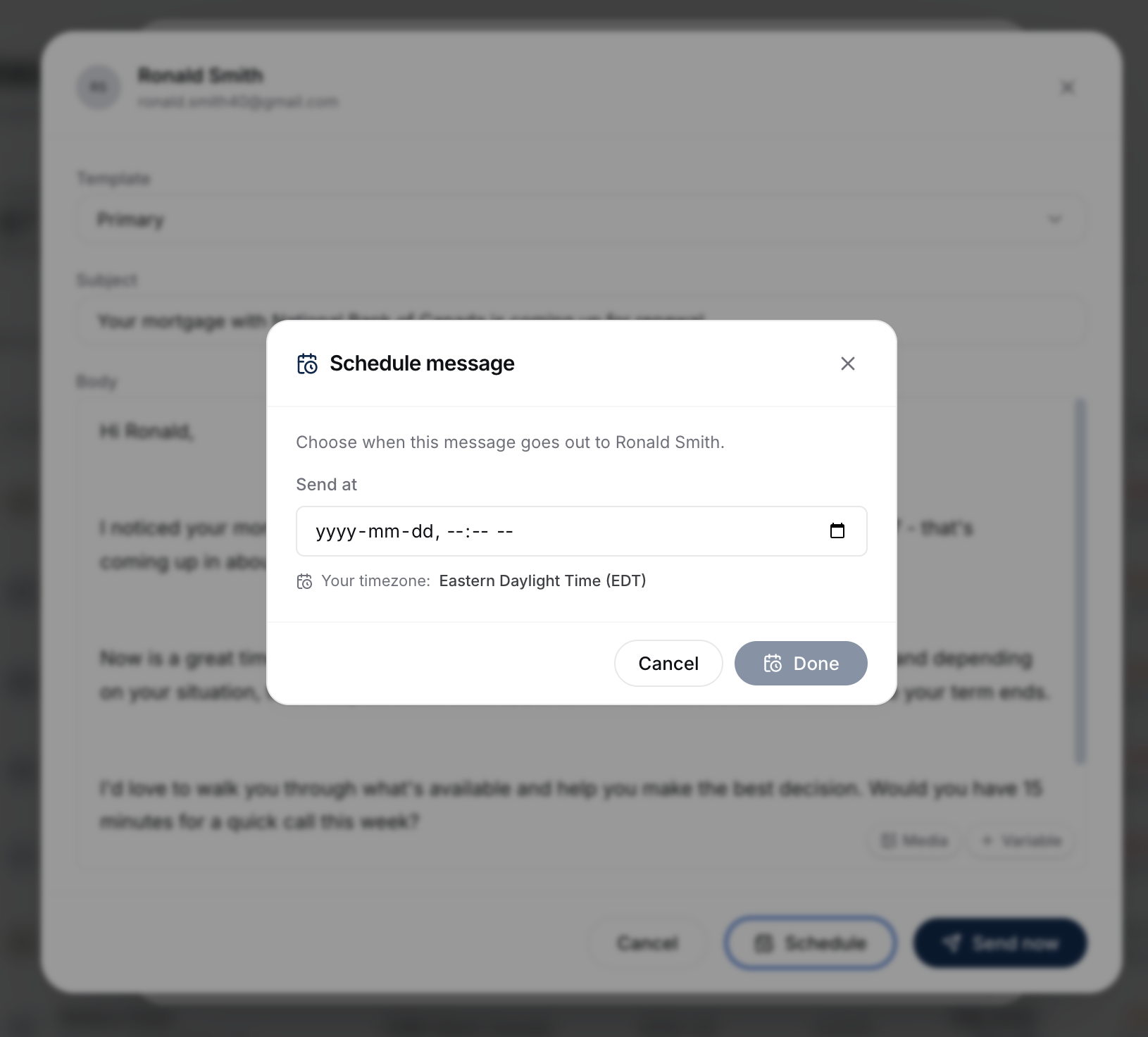
Scheduling
Use Schedule in the compose drawer to pick a date and time instead of sending right away. The client moves to Scheduled in Contacted until the send fires. Full walkthrough: Scheduling Sends And Automated Follow-Ups.
Automated Follow-Ups
Flip on Automated follow-ups in the compose drawer to send the day-7 and day-21 chasers automatically if the client doesn't reply - the same option refinance sends have. It's off by default, so turn it on before you send. As soon as the client replies, the chasers stop.
This runs alongside the auto outreach drip: the drip keeps its own spacing around any manual send, so the two won't stack up on the same client on the same day.
Sending
Click Send now to go immediately, or Schedule to queue it for later.
Where The Send Shows Up
After sending, the client appears on the Contacted page in the appropriate stage (Scheduled, No Reply, etc.) and starts accumulating engagement signals.
When To Use This Vs The Drip
- One-off manual send = a client you want to personally reach out to outside the milestone cadence (e.g. a high-equity client at 10 months).
- Drip = your background coverage for every client in your renewal book.
Use both. See How Renewal Auto Outreach Works (The Drip).
What To Do Next
- Set up the drip if you haven't: How Renewal Auto Outreach Works (The Drip).
- See where the send lands: Contacted Stages Explained.